How to Convert a Logo to SVG (Free, No Signup) — Step by Step
A logo is the single most common thing people convert to SVG — and the format it benefits from most. A PNG logo blurs on a banner and pixelates on a business card; the same logo as an SVG stays razor-sharp at every size, from favicon to billboard. Here’s how to get a clean conversion with our free converter, and how to fix the things that typically go wrong.
Step by step
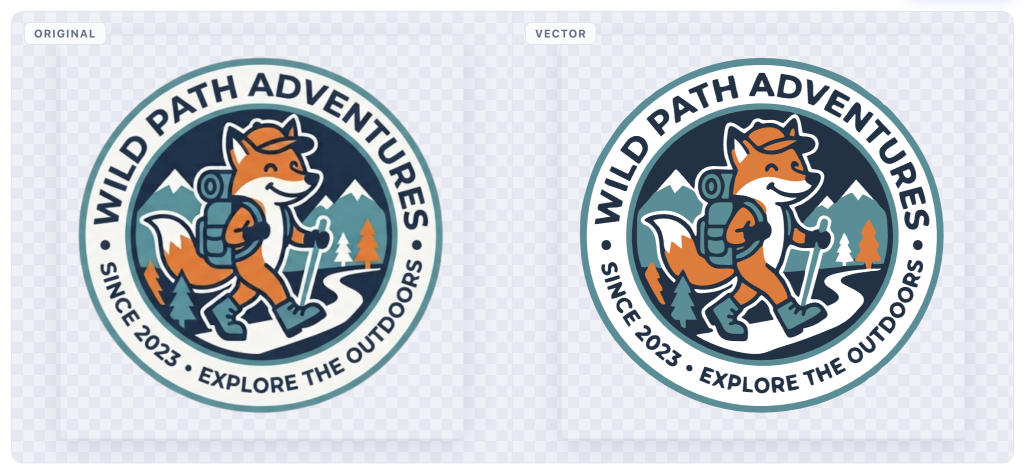
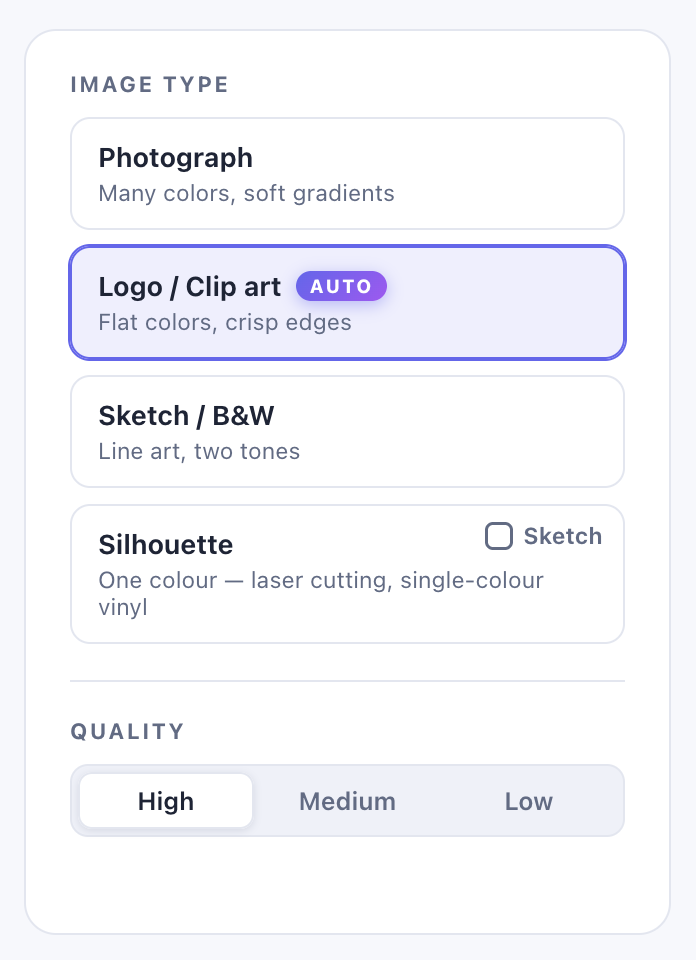
Upload your logo (PNG, JPG or WEBP — use the largest version you have; more pixels means cleaner curves). The converter auto-detects logos and applies the Logo / Clip art preset: flat colors, crisp edges, sharp corner detection. Within a couple of seconds you’ll see the original and the vector side by side.
Check the palette below the preview. A logo usually needs far fewer colors than the converter’s first guess — if your logo is really four colors, pick the 4-color suggested palette and the shapes get cleaner and the file smaller. Then hit Download and choose SVG (or PNG/PDF if you need those too).
Keeping (or removing) the background
If your PNG has a transparent background, the SVG keeps it transparent — nothing to configure. If your logo sits on a white or colored background you want gone, click the × on that color in the palette: every path in that color is removed from the SVG entirely. That’s the fastest background remover there is.
Recoloring on the way out
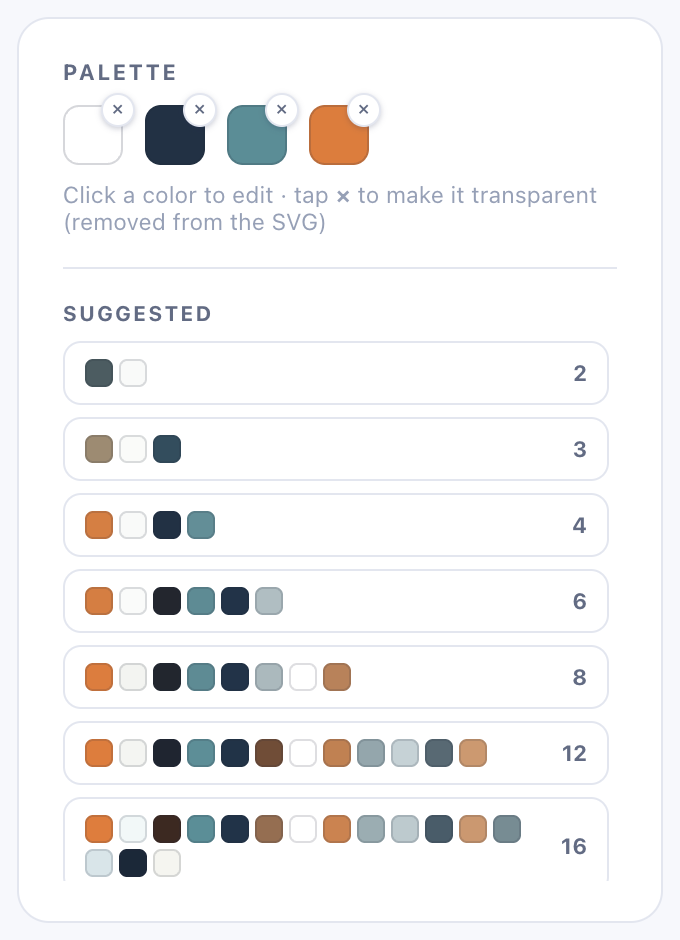
Click any color swatch to edit it — the shapes stay exactly where they are and only the paint changes. Brand-color corrections (say, an off-blue back to your exact hex) take seconds, and the change applies to every path in that color.
When the result looks rough
Three common causes, three fixes. A small source image (under ~800px) simply doesn’t carry enough pixels for smooth curves — find a bigger export. JPG artifacts around edges can add speckles — nudge up “Speckle removal” in Advanced. And gradients don’t vectorize into gradients — they become bands of flat color; for gradient-heavy logos, request the original vector from whoever designed it.
FAQ
Is the converted SVG really editable? Yes — every color is its own layered path, so it opens cleanly in Illustrator, Inkscape, Figma or Cricut Design Space.
Does it work for JPG logos? Yes — same flow via our JPG to SVG page.
What about very detailed emblems and crests? Fine-line artwork gets special treatment — see our guide to converting sketches and line art.
Free, no signup, and your logo never leaves your browser. If it saved you time, a coffee keeps it free.